
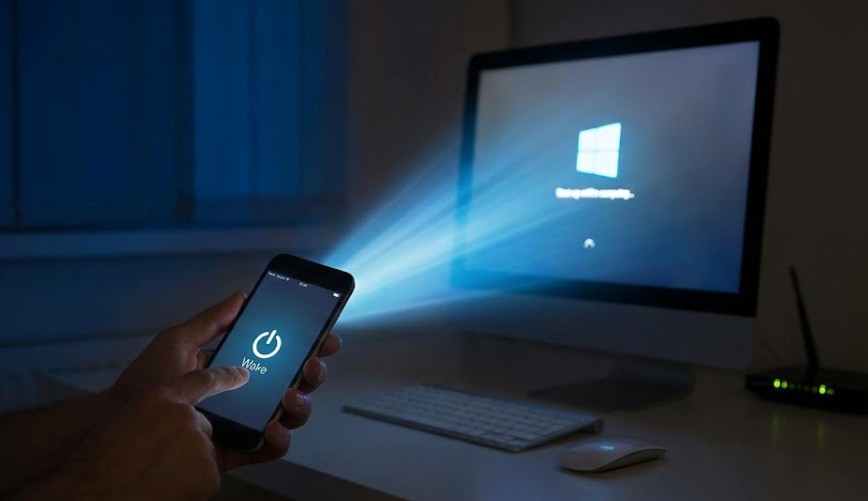

Picture turning your computer on from the other side of the house-or even while you’re away-without pushing a single button. It may sound like a tech magic trick, but thanks to a feature called Wake-on-LAN, it’s completely real. You can turn your PC on remotely with just a bit of setup for a faster, more convenient way to go online and manage your device without touching your machine. Here’s how you can unlock this surprisingly full-featured capability.
Understanding Wake-On-LAN and its hidden everyday convenience
With Wake-on-LAN, a powered-off or sleeping PC can turn on if it receives a special “magic packet” over your network. That means you can start your computer from your phone, another laptop, or even a smart device. Whether you’re wanting to have remote file access or get your PC ready for gaming or work before you walk in, WOL makes it incredibly simple.
Checking Whether Your Computer Supports this Remote Feature
Most modern desktops and laptops support Wake-on-LAN, but it’s always good to check. First, consult your motherboard or network adapter specifications. If your computer is relatively recent, especially with wired Ethernet, support for WOL is all but guaranteed. This magic trick won’t happen without compatible hardware.
Enabling Wake-On-LAN Through Your BIOS Settings
First, you need to activate Wake-on-LAN via your BIOS or UEFI settings. Restart your computer and get into the BIOS menu. Look for settings related to “Wake on LAN,” “Power Management,” or “Resume by LAN.” Turning these on will let your computer listen for the activation signal, even when off or asleep.
Activating Wake-On-LAN Inside Your Operating System
Once you have enabled this in the BIOS, you’ll need to actually turn it on inside Windows or macOS. In Windows, this means opening the Device Manager, finding your network adapter, and enabling features such as “Wake on Magic Packet.” That tells your operating system to accept remote wake requests. Similarly, macOS can be configured to work with remote wake features.
Using Wake-On-LAN Apps to Trigger Magic Packets
Now, the fun part begins: waking your PC remotely. You can use dedicated WOL apps available for Android, iOS, Windows, and macOS. These apps send the “magic packet” directly to your PC. Once configured, you tap a button and watch your computer power up from anywhere in your home, like digital sorcery.
Troubleshooting Problems When Wake-On-LAN Doesn’t Work
Sometimes the magic doesn’t happen. If your PC doesn’t wake, check your Ethernet connection-WOL works best with wired networks. Also, confirm your firewall, router port forwarding, and power settings. Disabled fast startup, proper BIOS settings, and correct MAC addresses are key to making WOL run smoothly.
Unlock powerful convenience with this simple network feature. Wake-on-LAN feels like magic, but it’s really just a smart use of your home network. Set it up, and you can power on your computer easily from across the room, across the house, or even across the world. With a tap, your PC springs to life exactly when you need it.
You may love reading: Hidden Wi-Fi Thieves? Here’s How to Spot Every Device
News Source: PCmag.com






Leave a Reply